‹ Guides
Guide 2 of 8
Write your first CFS tags
Give any spool the RFID tags a Creality CFS reads, including third-party filament, picked by brand and colour.
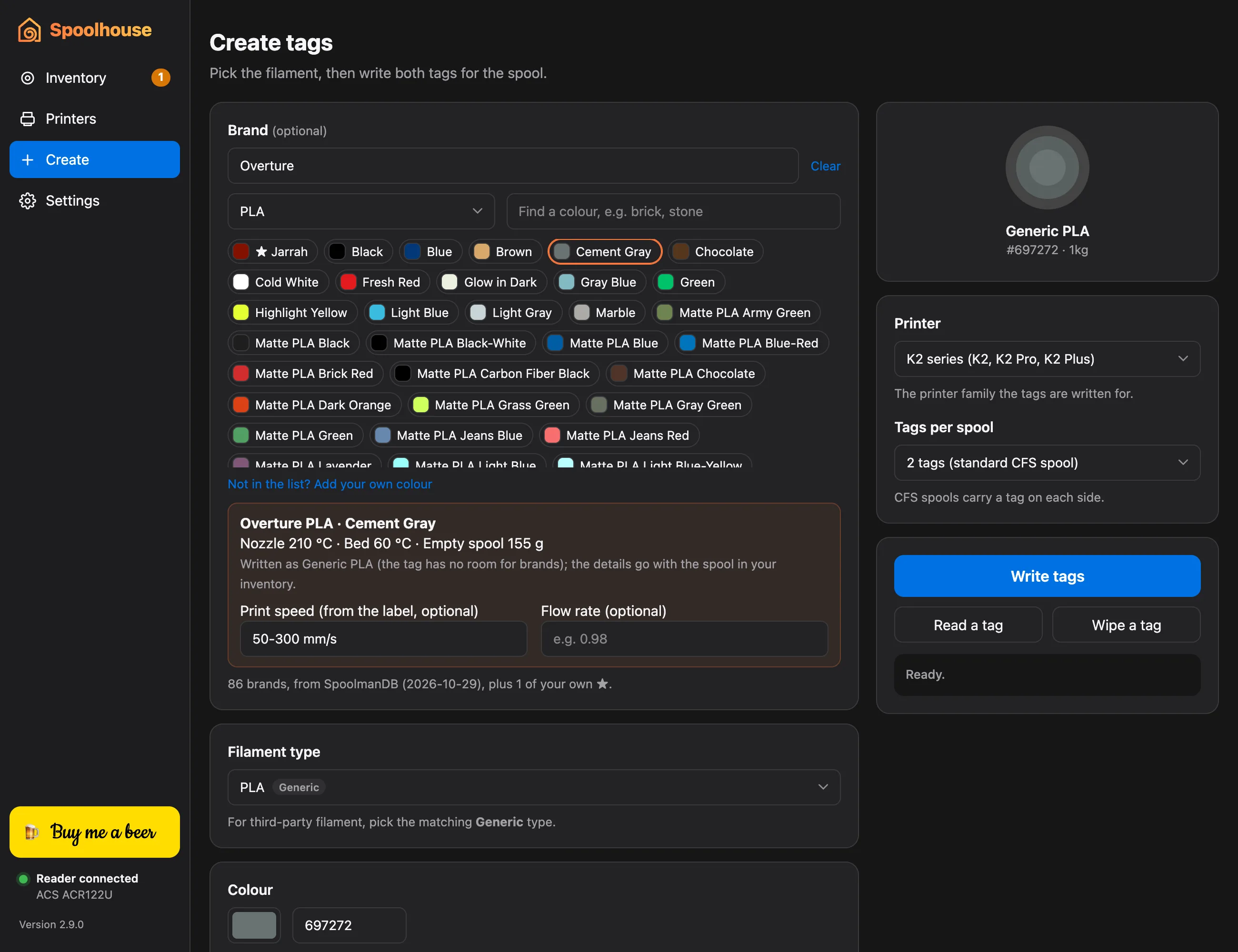
A CFS spool carries a tag on each side. Spoolhouse writes both, so the CFS knows the filament and colour as soon as you load it, and the spool joins your inventory.
You need blank MIFARE Classic 1K tags or stickers, one for each side of the spool.
Write the tags
- Click Create in the sidebar.
- Under Brand (optional), type your filament's maker, for example Overture or eSUN, and pick its material and colour. Search colours by name: brick, matte blue, stone.
- The card underneath shows the brand's nozzle and bed temperatures and empty spool weight. They're kept with the spool.
- Is the colour missing? Click Not in the list? Add your own colour.
- Creality filament, or no brand? Leave the brand empty and pick the Filament type and Colour yourself.
- Choose the Spool weight.
- Check Printer (the family the tags are for, such as the K2 series) and Tags per spool (2 for a standard CFS spool).
- Click Write tags, then place the first tag on the reader when it asks, and the second when it asks again.
- Click Add this spool to inventory to fill in its price and where it's from.
Third-party filament is written as the matching Generic type, which is all a CFS tag can hold. The brand, colour name and temperatures stay with the spool in Spoolhouse.
Check a tag
Click Read a tag and place a tag on the reader to see what's written on it. Wipe a tag clears one so you can reuse it.