‹ Guides
Guide 3 of 8
Add spools to your inventory
Scan a tagged spool to add it, with its price, shop and date, so you always know what you have.
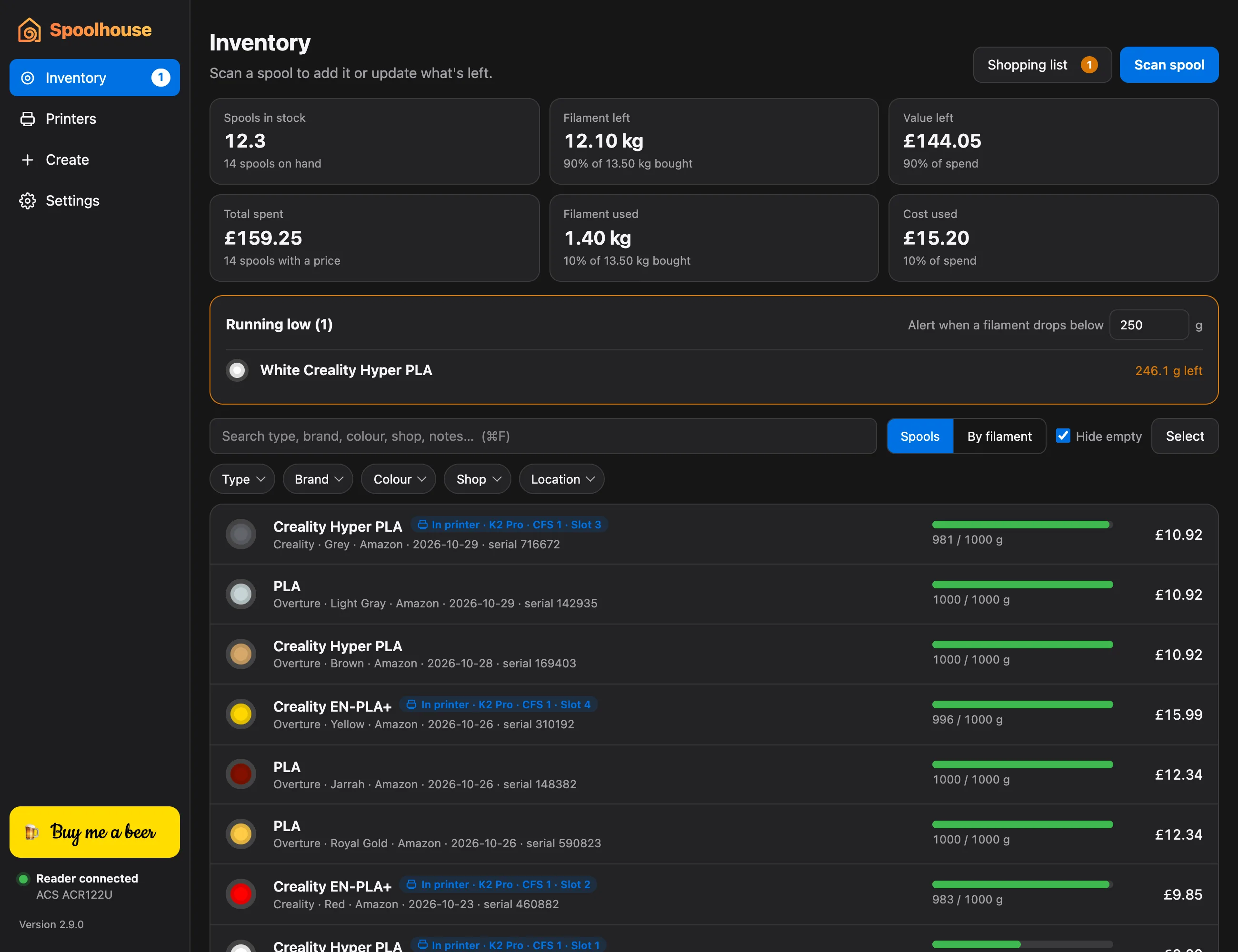
Every spool in Spoolhouse is added by scanning its tag. That's what lets the printer's usage come off the right spool later. It works with spools you've tagged in Spoolhouse and with Creality's own tagged spools.
Add a spool
- Click Inventory, then Scan spool.
- Place one of the spool's tags on the reader.
- Fill in what you know: Cost, Purchased and Where from. The filament, colour and size come from the tag.
- Click Save.
Bought several? Each spool has its own tags, so scan each one the same way.
What you'll see
The inventory shows every spool with what's left and what it cost, and totals across the top: spools in stock, kilograms left, value left and what you've spent. Filter by Type, Brand, Colour, Shop or Location and the totals follow.
- By filament groups your spools by material and colour.
- Running low lists any filament under your limit. Set the limit in Alert when a filament drops below.
- Shopping list collects what's running low, with the last price and shop, ready to copy or email.