Guide 5 of 8
Connect your Creality printer
See what's in each CFS slot, live, and let every print's filament come off the right spool automatically.
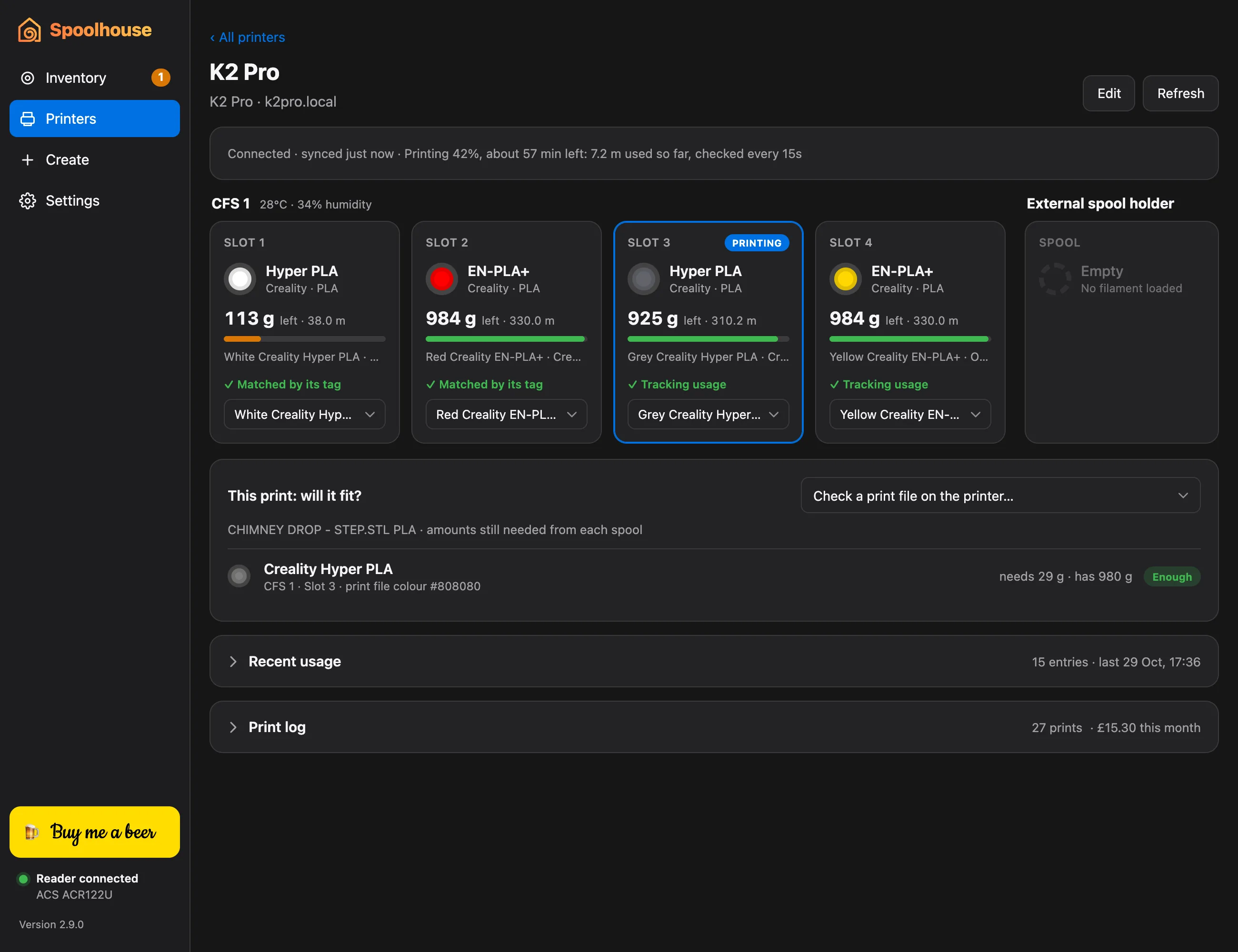
Spoolhouse connects to Creality K-series printers on your home network: the K2 series, K1 series and Hi. It only reads from the printer and never sends it commands.
Add the printer
- Find the printer's IP address on its screen, in its network settings (for example
192.168.1.50). - In Spoolhouse, click Printers, then + Add printer.
- Give it a Name, choose the Model and type the IP address.
- Click Test connection, then Save.
Your spools in the CFS
The printer's page shows each CFS slot, live: the filament, how much is left, and which slot is printing, plus the CFS's temperature and humidity.
Spools you've scanned into your inventory are matched to their slots by their tags (Matched by its tag). After that, every print's filament comes off the right spool, and the Print log records each print's use in metres and grams, which spools it came from, and its cost.
Keep tracking
Closing the window keeps Spoolhouse running from the menu bar (Mac) or system tray (Windows), so printer usage keeps coming off your stock. Turn on Open at login in Settings → Running in the background and tracking never stops.
Printed while Spoolhouse was closed? Those prints appear under Needs attention in the print log, ready to charge to the right spools.