Guide 8 of 8
Back up your inventory
Keep automatic backups on a NAS or any folder, restore them on a new computer, and export to a spreadsheet.
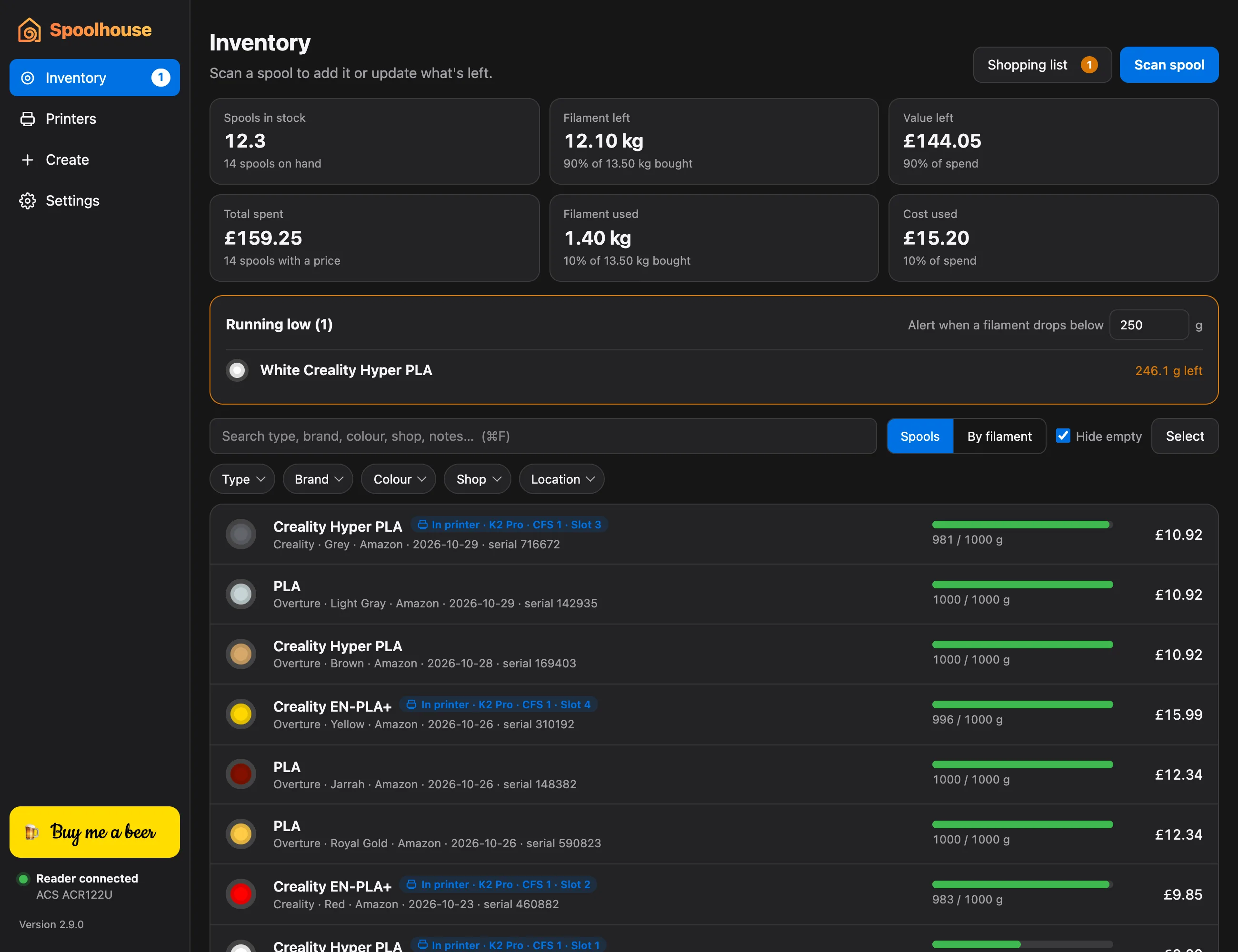
Your inventory lives on your computer, with no account or cloud. These settings keep it safe.
Automatic backups
- Open Settings → Automatic backups.
- Click Choose folder… and pick a folder: a NAS share, an external drive or a cloud-synced folder.
- Set How often to Every day or Every week, and choose how many to Keep. Older backups in that folder are removed; other files are never touched.
Back up now makes one straight away. If the folder is on a NAS that isn't connected, backups wait and catch up when it is.
On a Mac, connect to the NAS share in Finder first (Go → Connect to Server) and tick Remember this password.
Back up or restore by hand
In Settings → Backup and restore:
- Save backup… saves a copy of everything (spools, printers, usage and settings) in one file, wherever you choose.
- Restore… brings a backup back. Use it to move your inventory to a new computer.
Spreadsheets
Settings → Export to a spreadsheet saves your spools (Export spools…) or your print usage (Export usage…) as CSV files for Excel, Numbers or Google Sheets.
Moving from the phone app's On this phone mode to your computer? Once paired, the spools from the phone are sent to the computer.